
How to explain a screenshot with AI Vision
By AI Vision project · Updated
To explain a screenshot in Chrome, install AI Vision, save your Gemini API key, select the relevant area, and ask Gemini what it shows. The answer stays with the capture so you can ask a follow-up question.
Capture the detail that matters
First, get a Gemini key and save it in AI Vision. Open a supported webpage and use the toolbar icon or Alt + Shift + V to open the extension.
- Leave the default Capture mode selected. Drag over the chart, error message, or image detail you want Gemini to see. A single click opens the panel without a picture if you want to ask about the page first.
- Include the full labels, units, and nearby context that affect the answer. Text on Chrome internal pages and the Chrome Web Store cannot be captured.
- Type a question, or choose a quick action such as Explain, Summarize, or Answer. Wait for the response before sending another request.
- Read the answer against the selected pixels. Use Copy for a reusable response, then Follow up to ask about one detail or correct a mistaken reading.
GitHub-build preview: The unreleased v2.8 screenshots on this site show a compact Screenshot selector, Retake, and a direct follow-up field. The Store listing currently serves v2.5, so its labels and layout may differ.
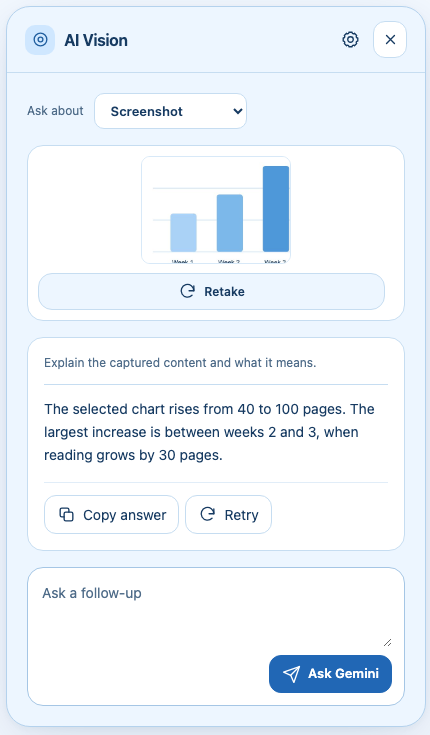
Worked example: explain a reading chart
Imagine a chart with weekly totals of 40, 60, 90, and 100 pages read. Capture the bars and their week labels, then ask:
“Which week had the biggest increase? Use the numbers shown and explain the calculation.”
Illustrative answer: The biggest increase is from week 2 to week 3: 90 − 60 = 30 pages. Week 4 has the highest total, but its increase is only 100 − 90 = 10 pages.
This distinction makes a better question than “What is this?” The highest total and the largest increase are different things. Follow up with “What would you need to know before calling this a lasting trend?” to surface missing context.
Extract text from an image
GitHub-build v2.8 preview: Use Extract text under More actions when a page shows text as an image. In the public Store v2.5 build, ask Gemini to transcribe the selected text with a typed question, then use the available Copy action. For paired source and transcription examples, read the screenshot-to-text guide.
“Transcribe the visible text in reading order. Preserve names, numbers, and punctuation. Mark unreadable words instead of guessing.”
Check every important number or name. AI text extraction can make mistakes, especially with handwriting, small type, or low contrast.
Understand an error message
Capture the full message with enough surrounding context to identify the affected feature. Ask for an explanation before asking for a fix:
“Explain this error in plain English. List two checks I can make without changing settings or running commands.”
If the capture does not work
- Blurry or missing text: enlarge the page content, then select a tighter area with all relevant labels.
- Nothing selected: drag a visible rectangle. A click or cancelled selection is not a captured image.
- Restricted page: try a normal HTTP or HTTPS webpage. Chrome internal pages and the Chrome Web Store cannot be captured by this workflow.
- Key or quota error: use the Gemini setup troubleshooting steps.
Choose a different context when it helps
A screenshot is useful for a visual detail. For an entire article, summarize the webpage instead. If you only need editable words, follow the screenshot text extraction guide. For information spread across sources, compare Chrome tabs. Your selected screenshot and question are sent to Google for the response; review the privacy notice before sharing sensitive content.