
Copy text from screenshots in Chrome
By AI Vision project · Updated
To copy text from a screenshot in Chrome, select the image area in AI Vision, choose Extract text, and copy Gemini’s AI-assisted transcription. It works for charts, error dialogs, and announcements that cannot be selected directly, but always check important words and numbers against the image.
1. Set up AI Vision
- Create or find a Gemini API key in Google AI Studio.
- Open AI Vision Settings from a normal webpage, paste the key, and save it. The public v2.5 build does not need the preview-only connection labels.
- Return to a supported webpage. Chrome internal pages, the Chrome Web Store, and other restricted pages cannot be captured by this workflow.
2. Extract and copy the text
- Open AI Vision and leave the public Capture mode selected.
- Drag around the complete text. Include headings, labels, punctuation, and table columns when they matter.
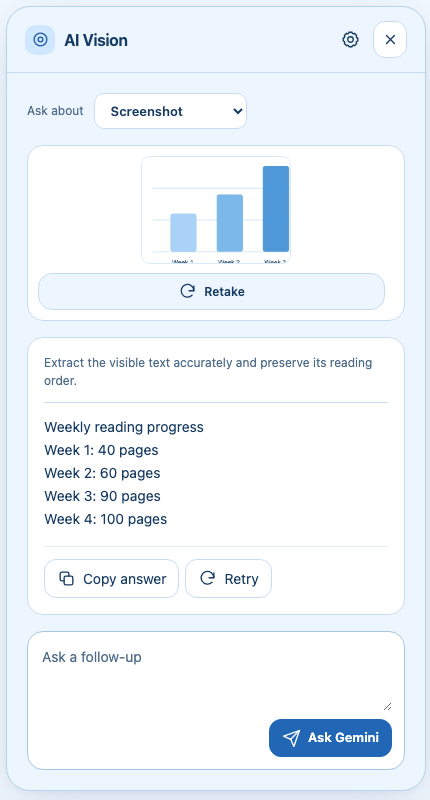
- Ask Gemini to transcribe the selection, preserving reading order and line breaks. The v2.8 preview exposes this as Extract text under More actions; the public v2.5 build may present it as a typed question.
- Review the answer against the screenshot, then use the available Copy action to place the result on your clipboard.
- Use the follow-up control if a line needs correction: ask Gemini to re-read one region, preserve the original line breaks, or mark an unreadable word instead of guessing.
Preview note: The GitHub-build v2.8 preview also offers Explain automatically. That preference sends a new Screenshot capture to Gemini immediately, while Extract text remains an explicit shortcut under More actions. The public Store v2.5 flow stays explicit.
3. Worked examples
Error message
Capture the complete error, including its code and the first line of surrounding context. Ask:
“Transcribe this error exactly. Keep punctuation and line breaks. Separate the error code from the explanatory text, and write [unclear] instead of guessing.”
Fictional source text in the screenshot
Upload failed (E-204)
The selected file is larger than 25 MB.
Try a smaller file and upload again.
Expected transcription
Upload failed (E-204)
The selected file is larger than 25 MB.
Try a smaller file and upload again.
Announcement image
Include the title, date, location, and any small-print condition. Ask:
“Extract the announcement in reading order. Preserve the date, time, names, and punctuation. Put each bullet on its own line.”
Fictional source text in the screenshot
Quiet study hour
Tuesdays and Thursdays · 4–5 pm
Six-week trial beginning September 15
The ground floor remains open for conversation.
Expected transcription
Quiet study hour
Tuesdays and Thursdays · 4–5 pm
Six-week trial beginning September 15
The ground floor remains open for conversation.
Small table
Drag around the table with its column headings. Ask Gemini to keep the row and column relationship visible:
“Transcribe this table as Markdown. Keep the header names, preserve units, and do not fill in blank cells.”
Fictional source table in the screenshot
| Plan | Storage | Price |
|---|---|---|
| Starter | 5 GB | $4/month |
| Team | 50 GB | $12/month |
| Enterprise | Contact us |
Expected transcription
| Plan       | Storage | Price       |
|------------|---------|-------------|
| Starter    | 5 GB    | $4/month    |
| Team       | 50 GB   | $12/month   |
| Enterprise |         | Contact us  |
Tables are easy to misread when the selection misses a header or a row. Check every number before you use a copied transcription.
Prompts that protect accuracy
- Reading order: “Read from top to bottom and left to right. Keep headings before the paragraphs they introduce.”
- Exact copy: “Preserve capitalization, punctuation, symbols, and visible spelling. Do not improve the wording.”
- Uncertainty: “Mark letters or numbers you cannot read as [unclear]. List the uncertain regions after the transcription.”
- Structured output: “Return only the text in a code block,” or “Return a Markdown table with the original headers.”
If extraction does not work
- Blurry text: zoom the webpage before selecting, choose a tighter area, and include enough surrounding context for the reading order.
- A line is missing: retake the screenshot with the full line and its heading. A narrow crop can make Gemini lose the relationship between labels and values.
- Selection is cancelled: press Escape or Cancel to return to the earlier capture. A new successful capture starts a fresh conversation.
- Restricted page: move to a normal HTTP or HTTPS webpage. AI Vision cannot capture Chrome internal pages or the Chrome Web Store.
- Invalid key or quota error: open Settings, keep the saved key, and use the feedback to check Google AI Studio’s project, model access, and limits. See the key troubleshooting guide.
Gemini can misread small type, handwriting, low contrast, unusual fonts, and tightly packed tables. Treat the output as a draft and compare important names, numbers, dates, and codes with the screenshot.
Keep the workflow close
Use the screenshot explanation guide when you need meaning rather than a transcription, summarize a webpage when the content is selectable, or compare Chrome tabs when facts are spread across sources. Your screenshot and question go directly to Google’s Gemini API; review the privacy notice before sharing sensitive content.